
Two-factor authentication (2FA) adds an extra layer of security to your DMARCwise account by requiring a second verification step when signing in.
SSO compatibility
- If your organization uses Single Sign-On (SSO), 2FA is managed by your identity provider (e.g., Microsoft Entra ID, Okta, Google Workspace) and not within DMARCwise. Learn more about SSO.
Enabling 2FA
To enable two-factor authentication on your account:
- Open the user menu in the top right corner of the dashboard and click Security.
- Locate the Two-factor authentication section.
- Click Set up authenticator app.
- Scan the QR code with your authenticator app (such as Google Authenticator, Ente Auth, or a password manager like 1Password or Bitwarden). If you’re unable to scan the QR code, copy and paste the secret key manually in the authenticator app.
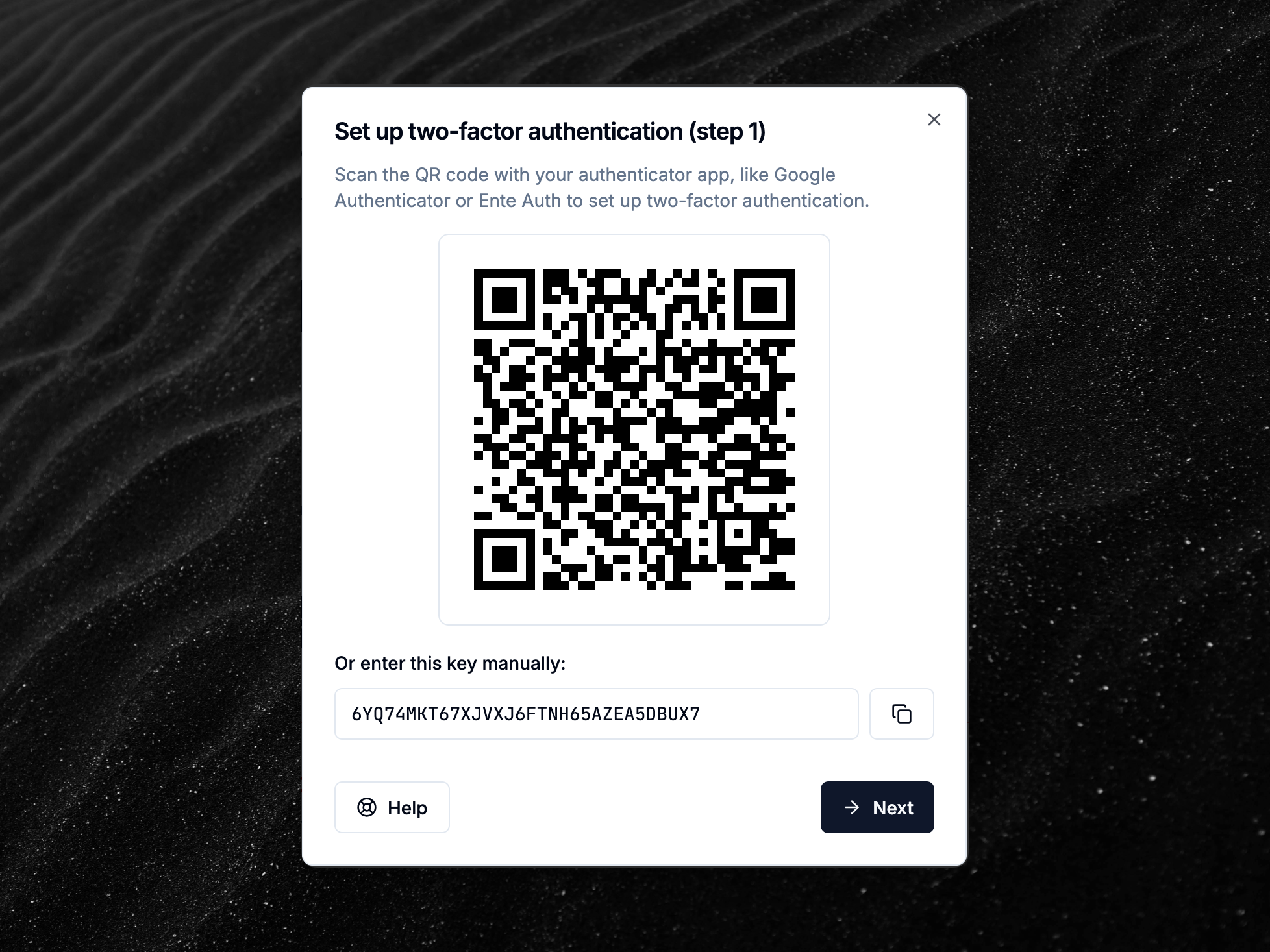
- Click Next.
- Enter the 6-digit code from your authenticator app to verify the setup.
- Click Enable 2FA to enable 2FA.


Once enabled, you’ll need to enter a verification code from your authenticator app every time you sign in.
Signing in with 2FA
When 2FA is enabled on your account:
- Enter your email and password on the sign-in page.
- You’ll be prompted to enter a 6-digit verification code.
- Open your authenticator app and enter the current code for DMARCwise.
- Click Verify to complete the authentication.

TOTP parameters and security
Two-factor authentication in DMARCwise uses the Time-based One-Time Password (TOTP) algorithm, with the following parameters:
- Time step: 30 seconds
- Algorithm: HMAC-SHA1
- Code length: 6 digits
For your security, DMARCwise stores the TOTP secret key in an encrypted format, while backup codes are hashed before storage.
Backup codes
After enabling 2FA, you’ll receive backup codes that you can use to access your account if you lose access to your authenticator app. Store these codes in a safe place.
If you lose access to your authenticator app:
- Use one of your backup codes to sign in.
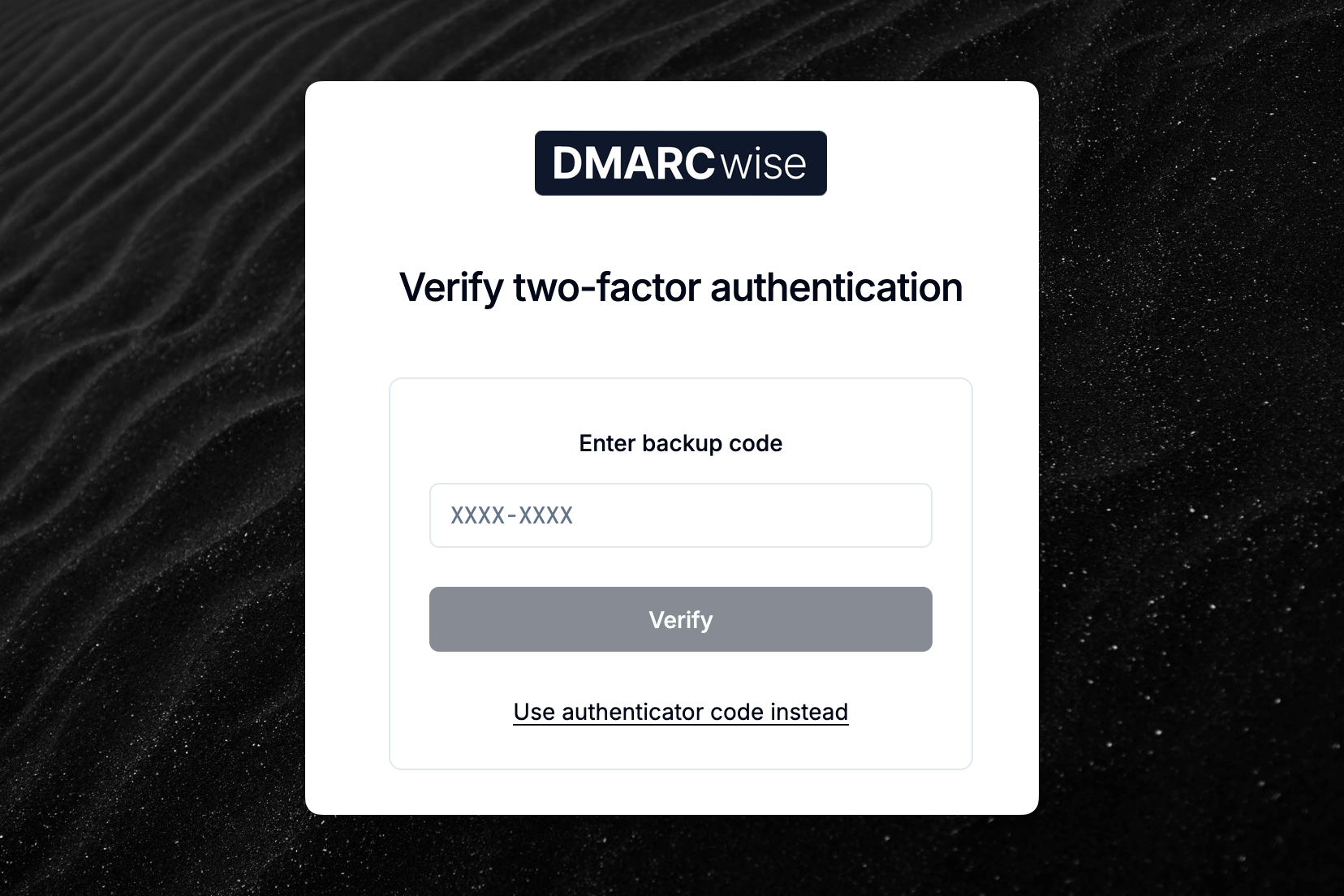
- Once signed in, disable and re-enable 2FA to set up a new authenticator.

At any time, you can check how many backup codes you have left in the account settings Security page:

If you lose your backup codes, you can generate new ones:
- Open the user menu in the top right corner of the dashboard and click Security.
- Locate the Two-factor authentication section.
- Click Regenerate backup codes.
- Enter the 6-digit code from your authenticator app.
You’ll be provided with new backup codes and the old ones will stop working.

Disabling 2FA
To disable two-factor authentication:
- Open the user menu in the top right corner of the dashboard and click Security.
- Locate the Two-factor authentication section.
- Click Disable 2FA.
- Enter your password to confirm.
- Click Disable 2FA to disable 2FA.